

 Deutsch
 Français
 Italiano
 Español
 Português
 中文 (中国)
 日本語
日本語 Русский
Step 3 – Upload the product data file to the TraceParts Smart-Publishing application
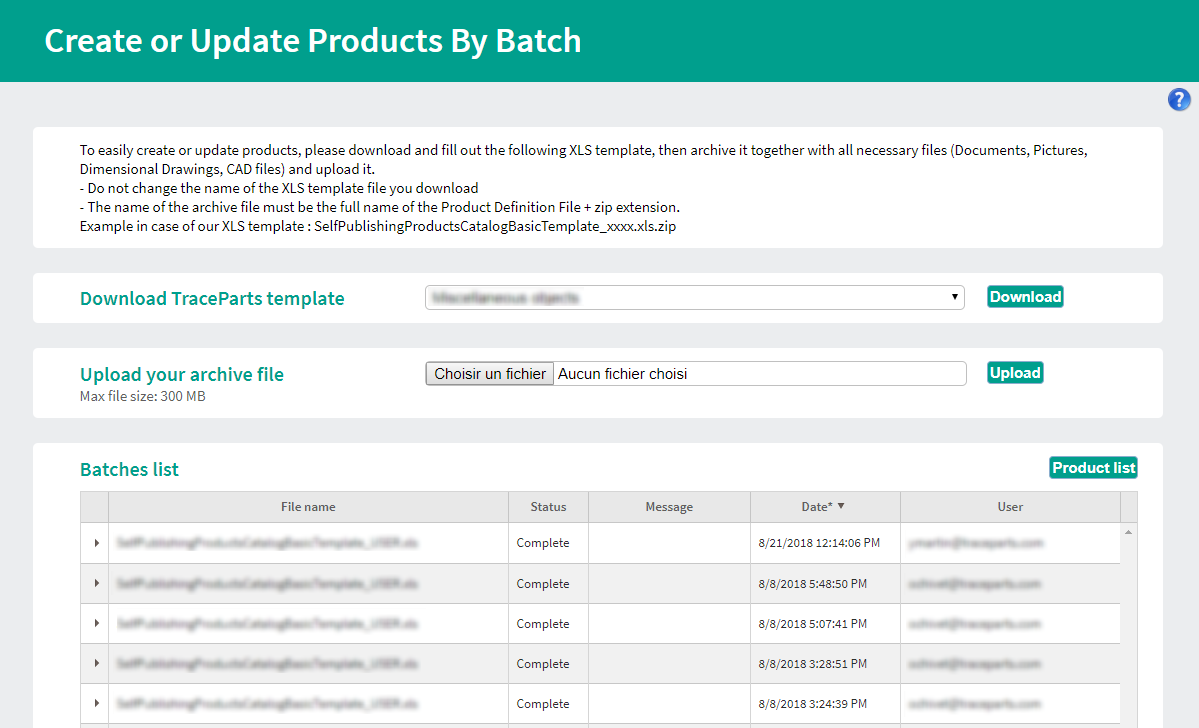
- Once the XLSM file is complete, create a .zip file to contain the following files:
– SelfPublishingProductsCatalogBasicTemplate_YourCatalog.xlsm (must be at the root level of the zip file)
– Documents
– Images
– Dimensional drawings
– CAD files - The name of the archive file to be uploaded must be: SelfPublishingProductsCatalogBasicTemplate_YourCatalog.xlsm, followed by the extension “.zip”. (where “YourCatalog” stands for the name of the catalog selected in step 1)
- Click “Choose a file”, select your.zip file, and click “Upload”.
- Once the file is uploaded, it appears in the list below. If a problem occurs while processing a product defined in the template, an error message is displayed in the “Message” box of the product concerned. The product is therefore not imported.
Where will the data be displayed on the site? > Uploading the product data file